How to Link Instagram to Facebook Page
Feb 22, 2024●
1
Go to Facebook.com & login to your account.
2
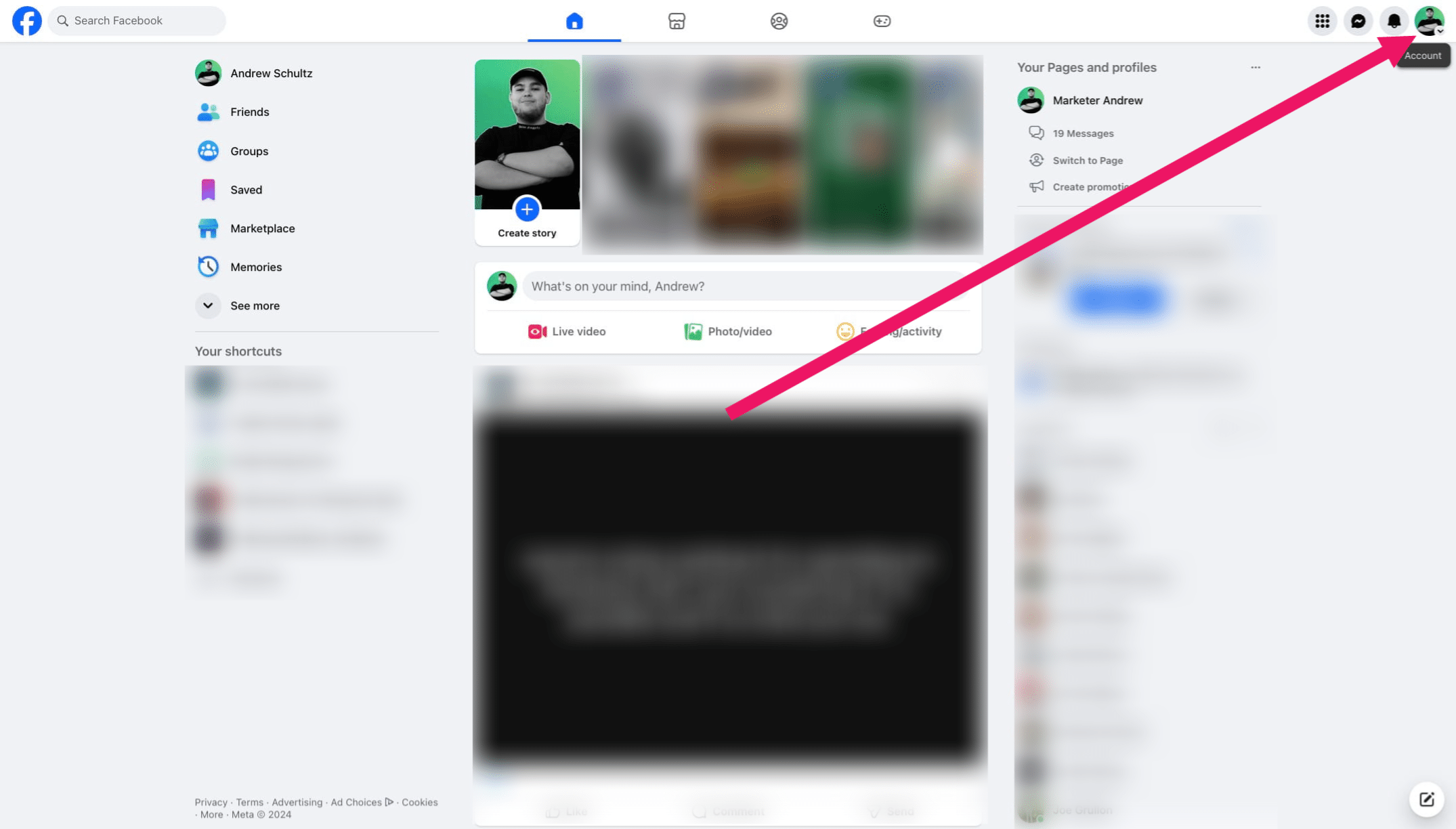
Click on your profile photo in the top-right corner.

3
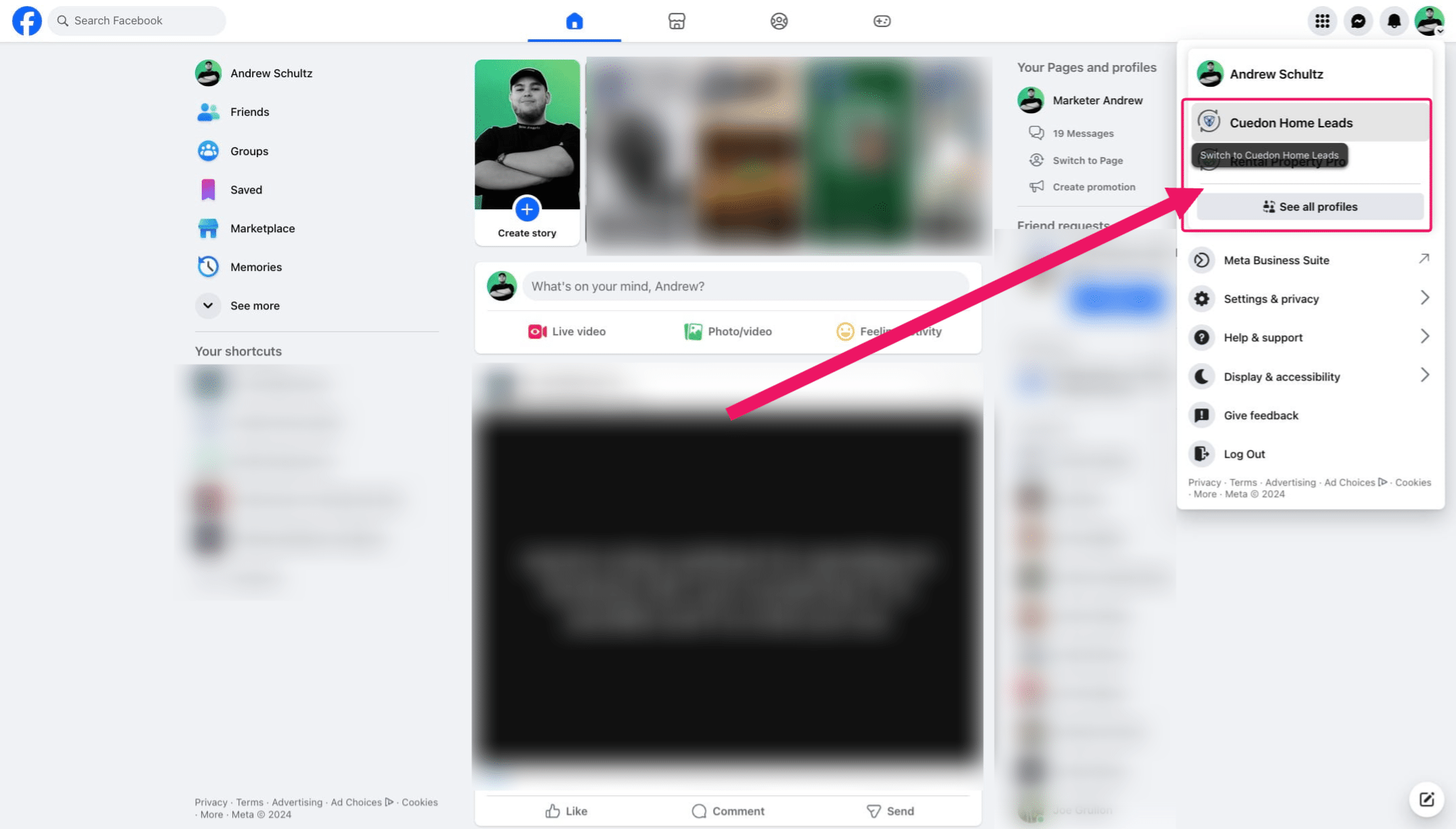
Select your Facebook Page
*Note: if you do not see your page from the dropdown list, click See all profiles
4
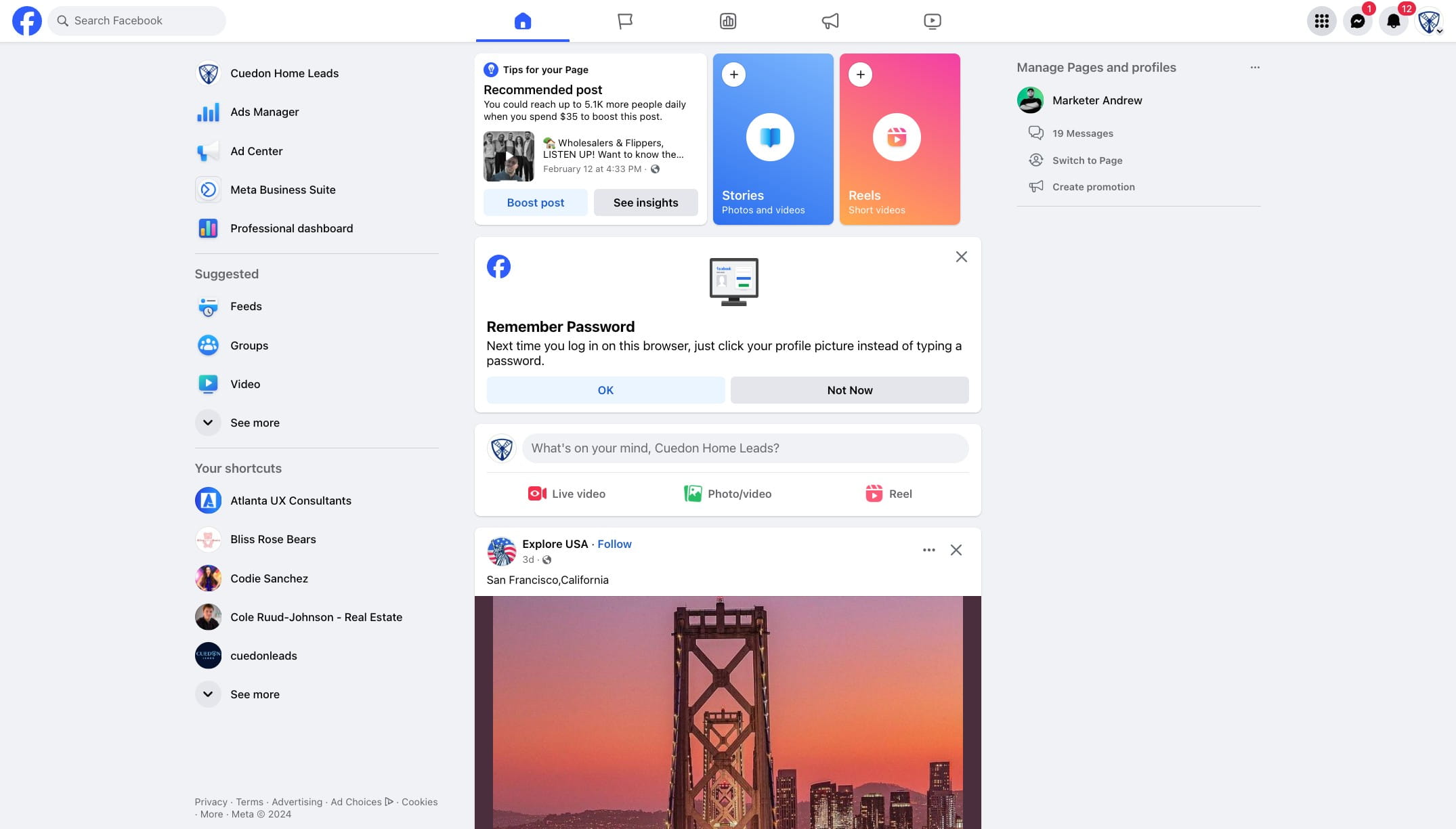
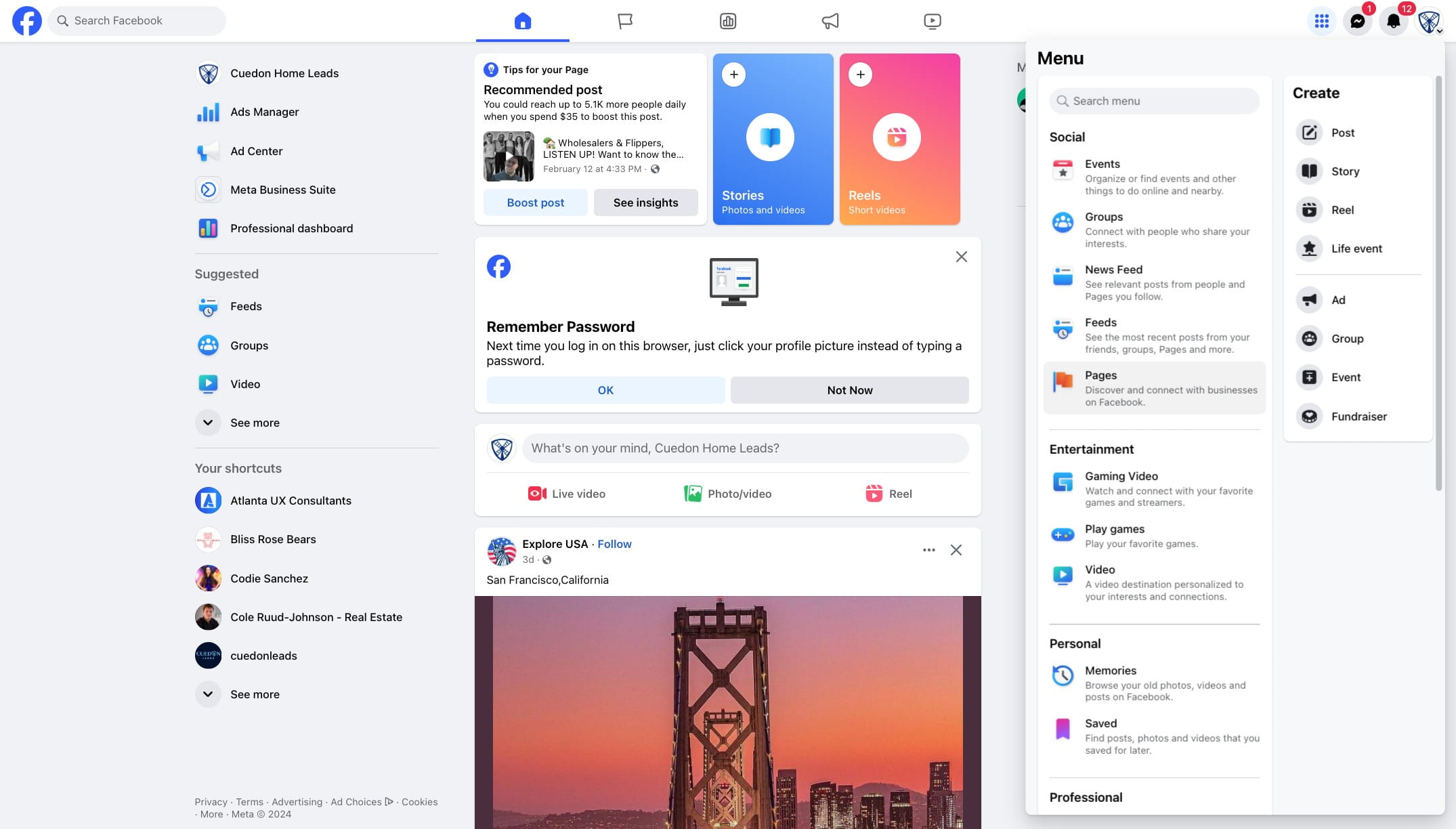
Click the 9 Dots in the Top-Right Corner
This will open a dropdown menu where you will then access your Facebook Page.
5
Click Pages
6
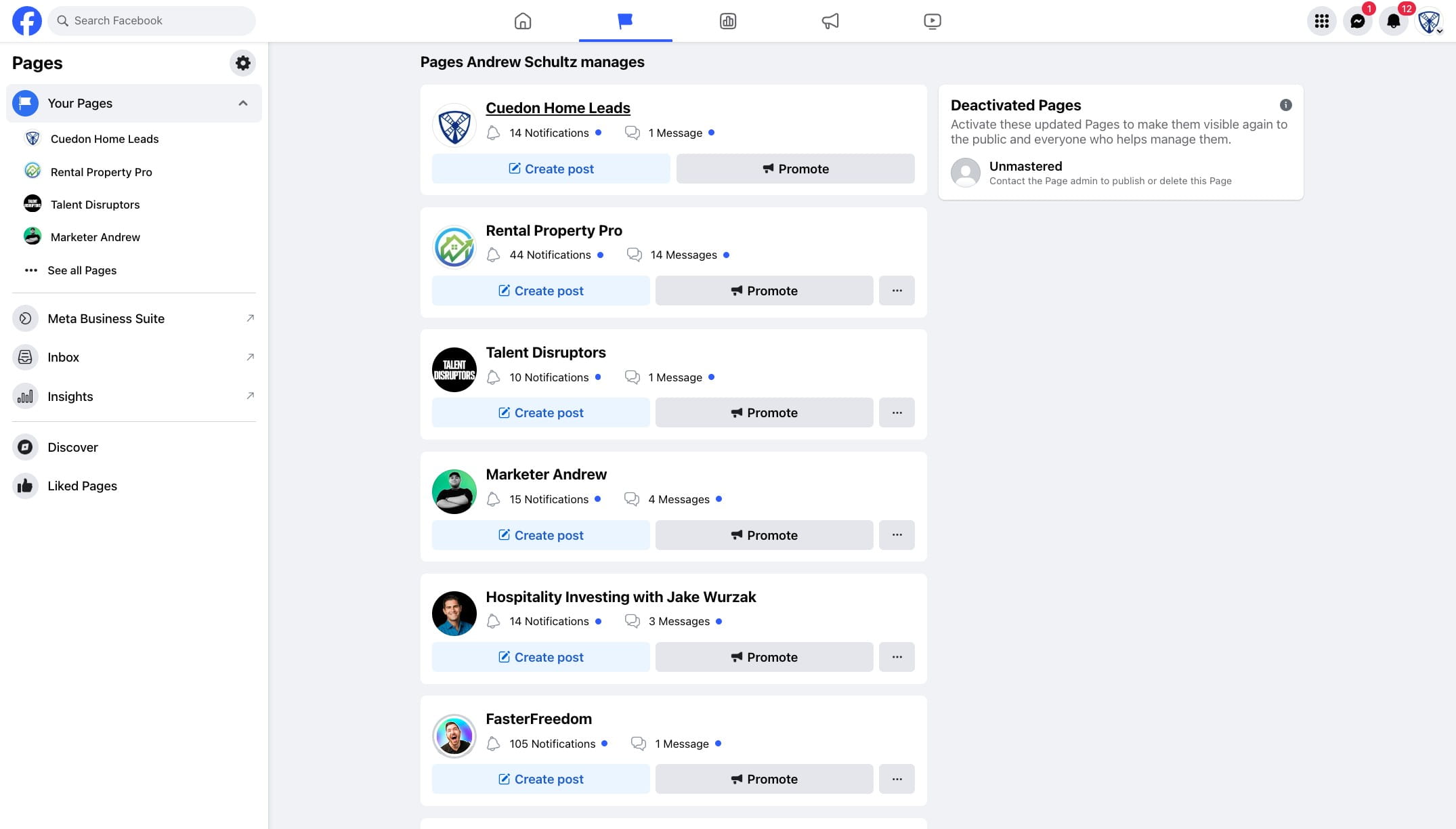
Select the Facebook Page you wish to link to Instagram.
7
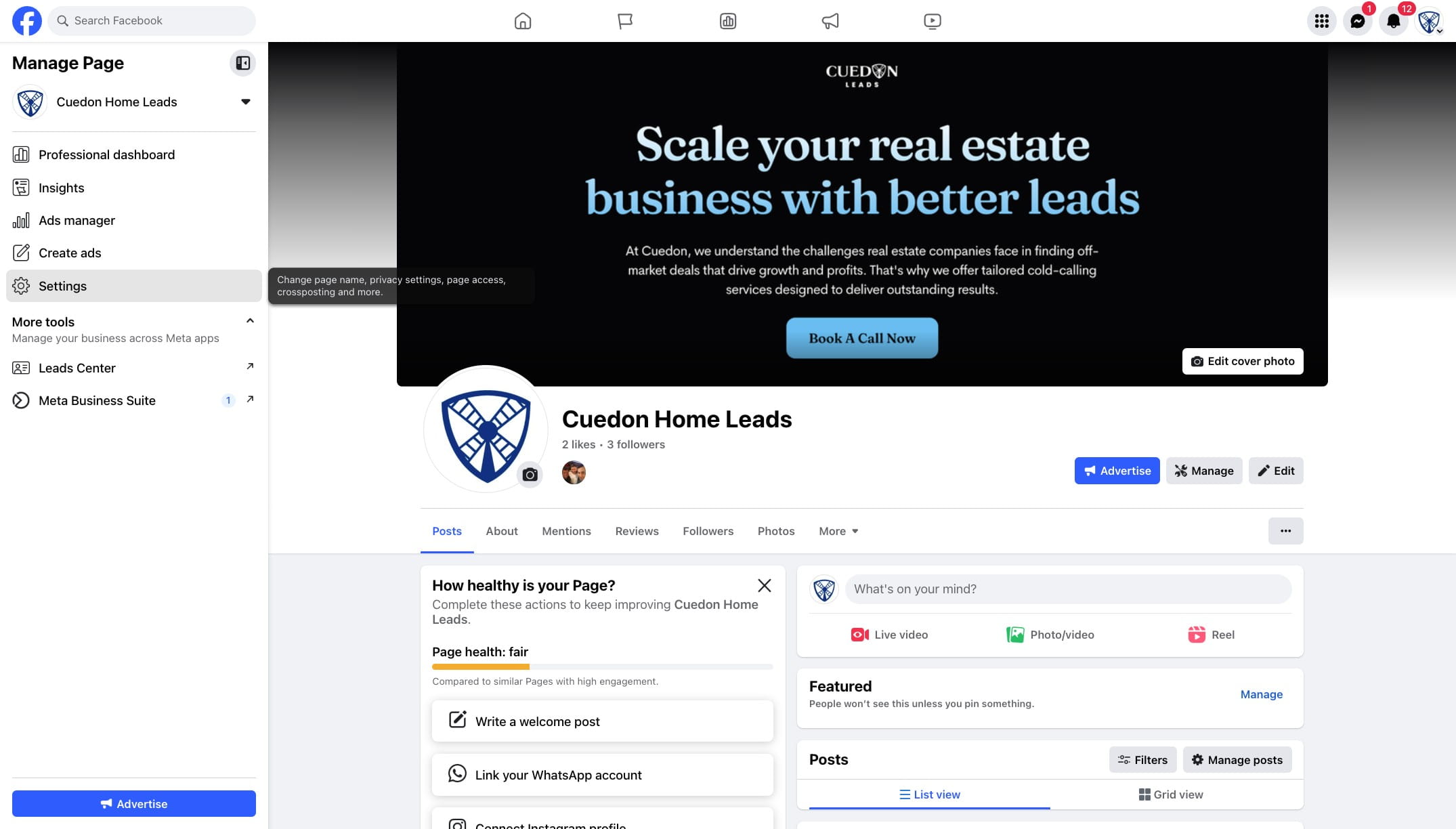
Once switched, click on SETTINGS in the left sidebar
8
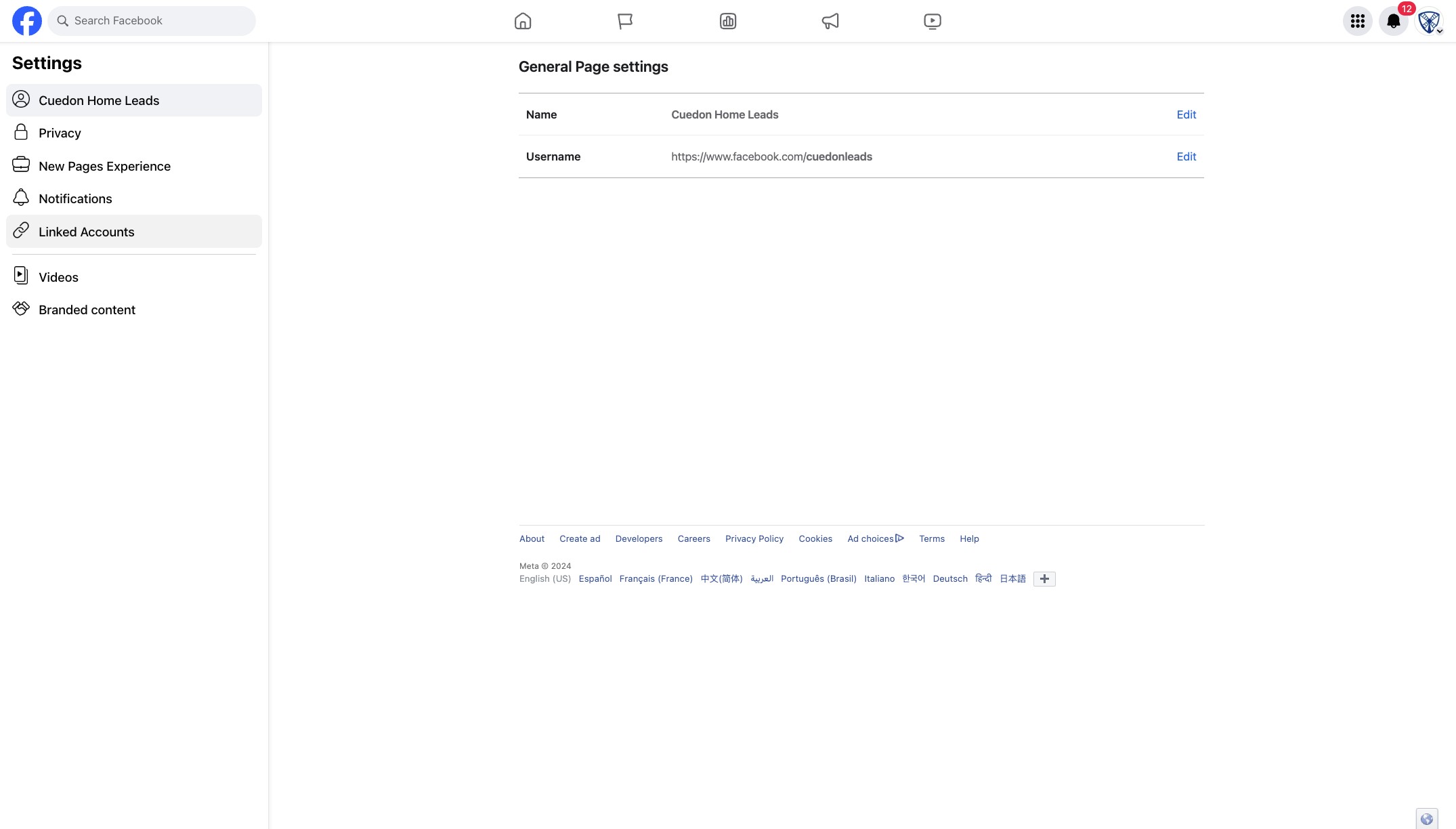
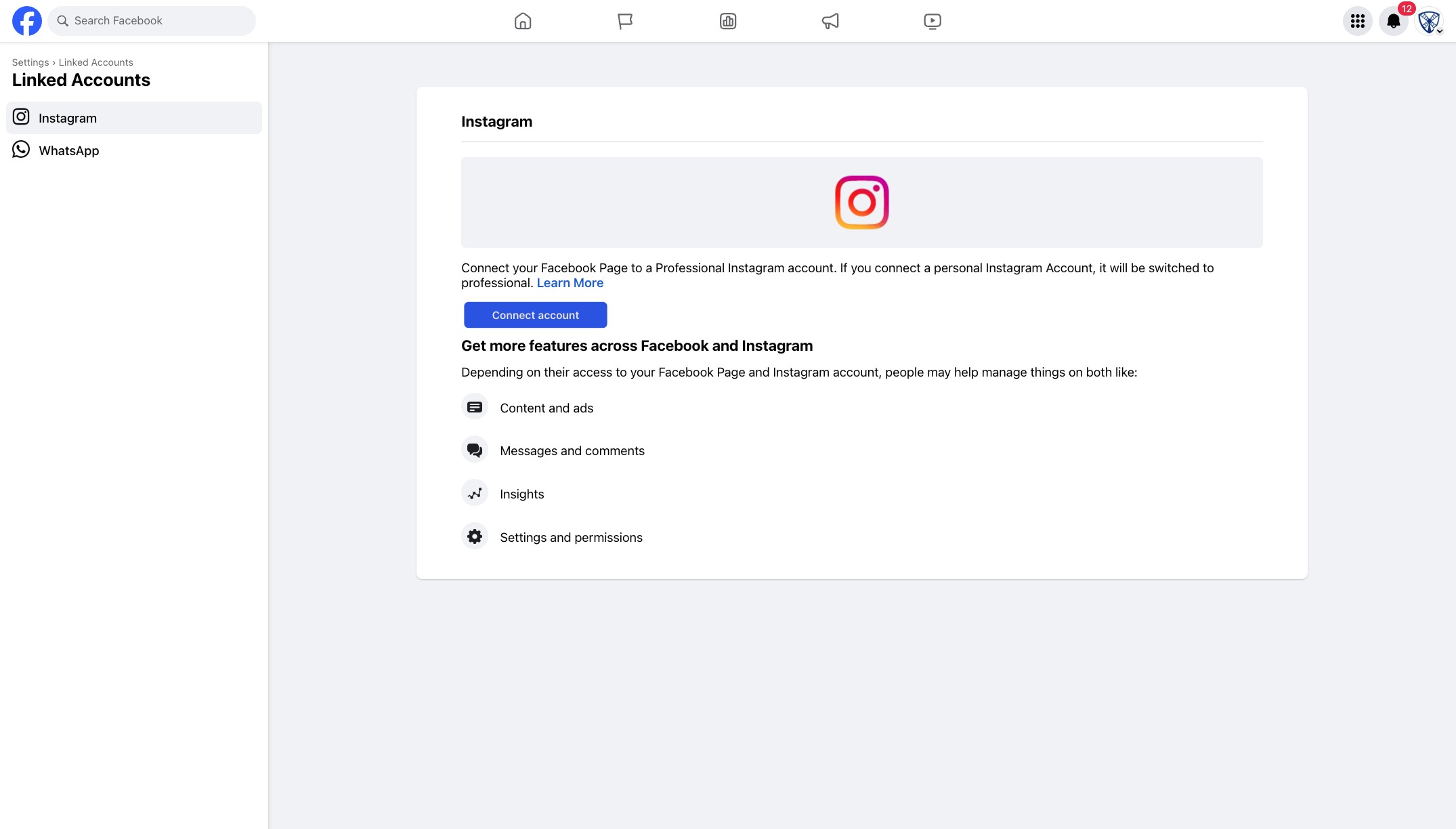
Click on "Linked Accounts"
9
Click on "Connect account"
10
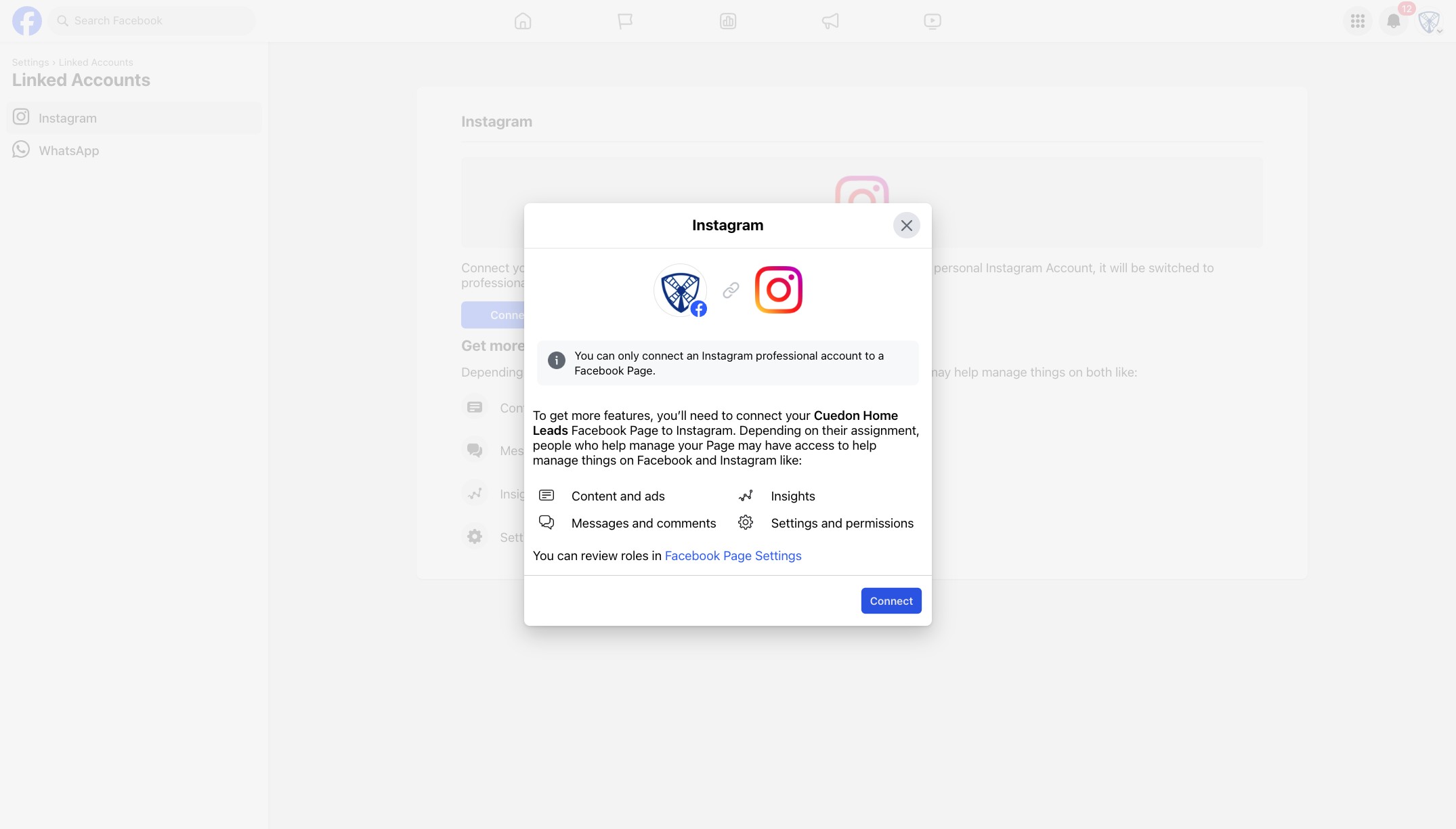
Click on "Connect"
11
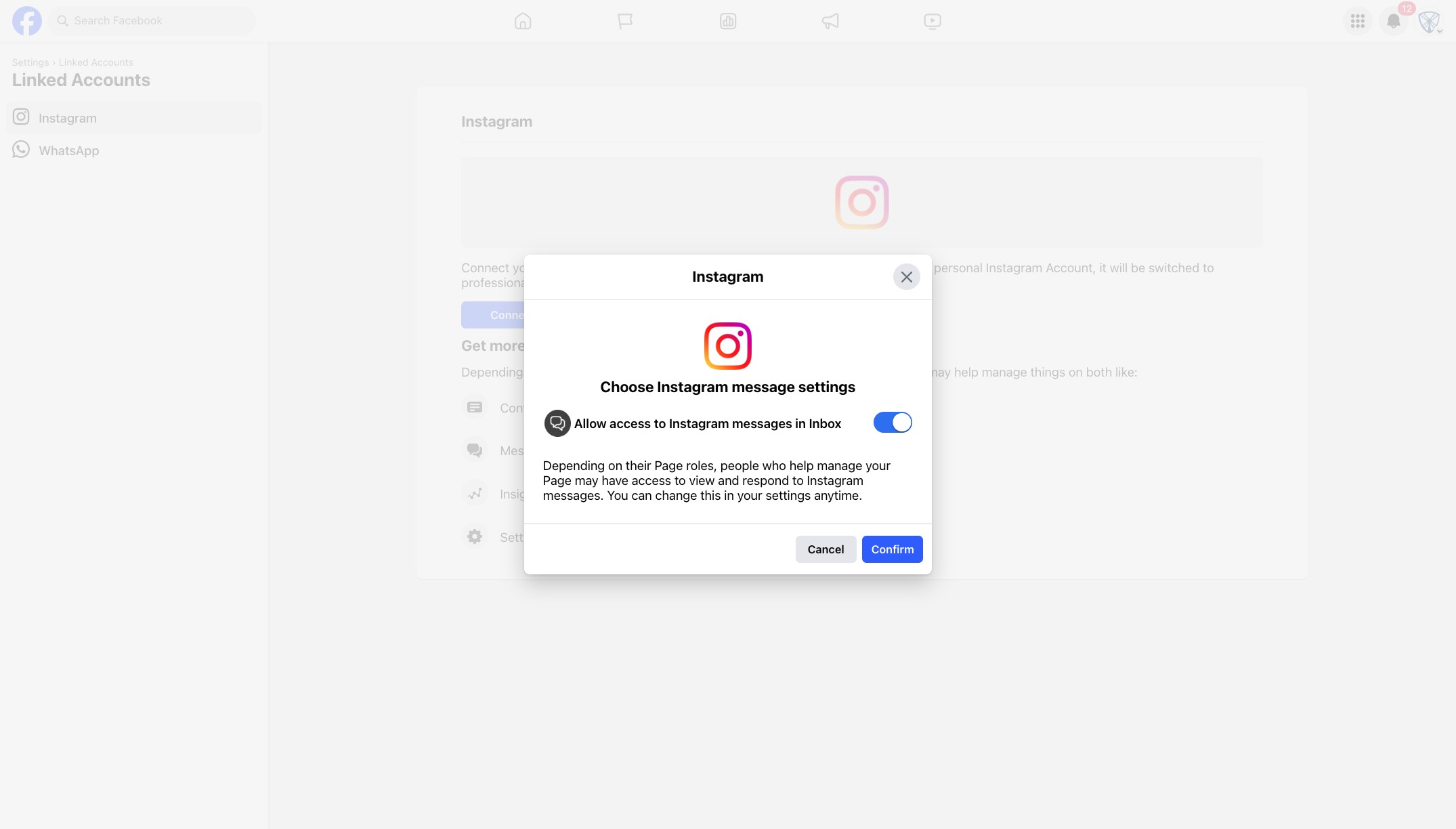
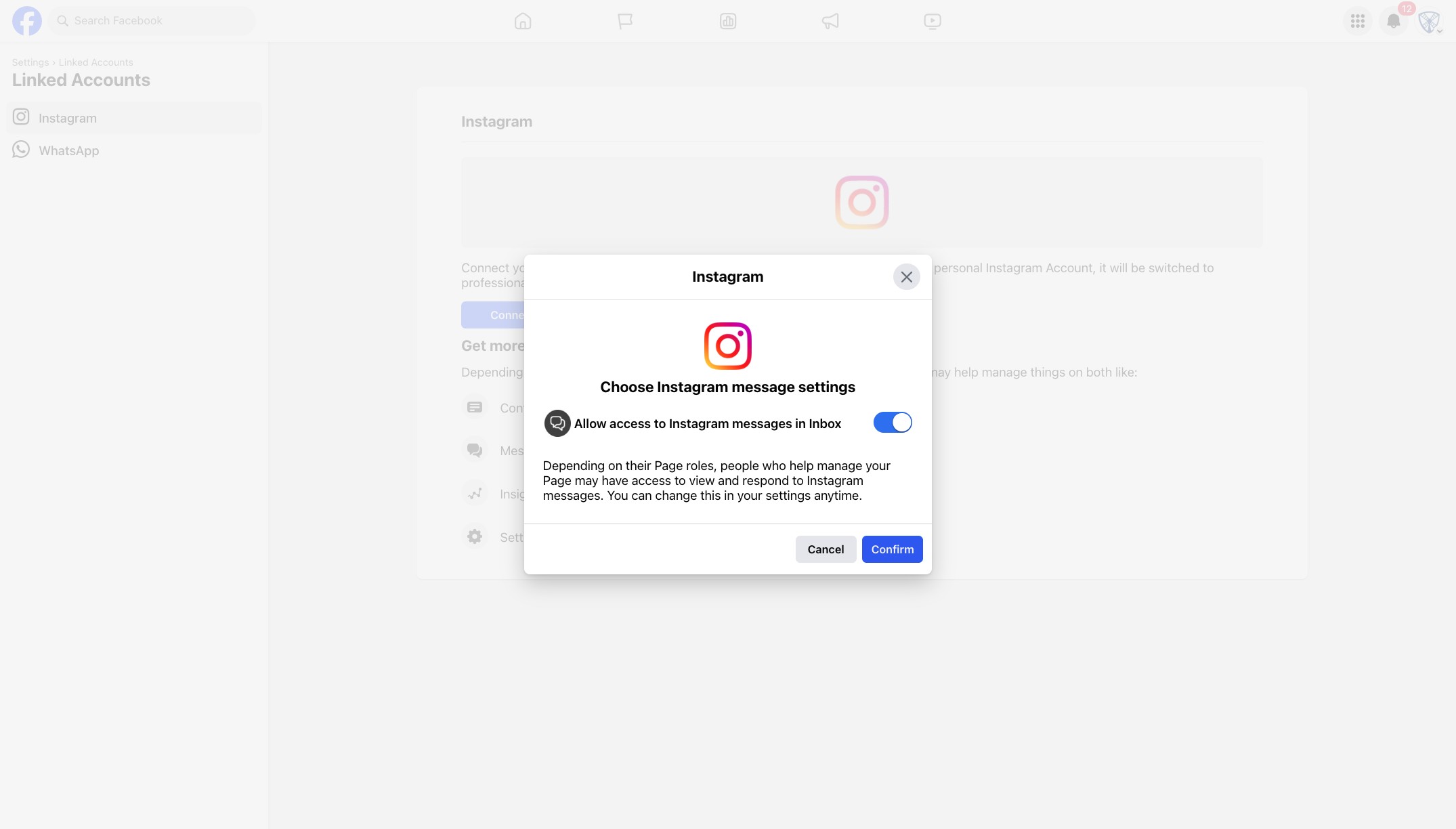
Click on "Confirm" when asked: Allow access to Instagram messages in Inbox
12
A pop-up window will appear asking you to log into Instagram.
Log in & it will automatically link.